The Discord NFT Sales Bot I Recommend in 2026 (Setup Guide)
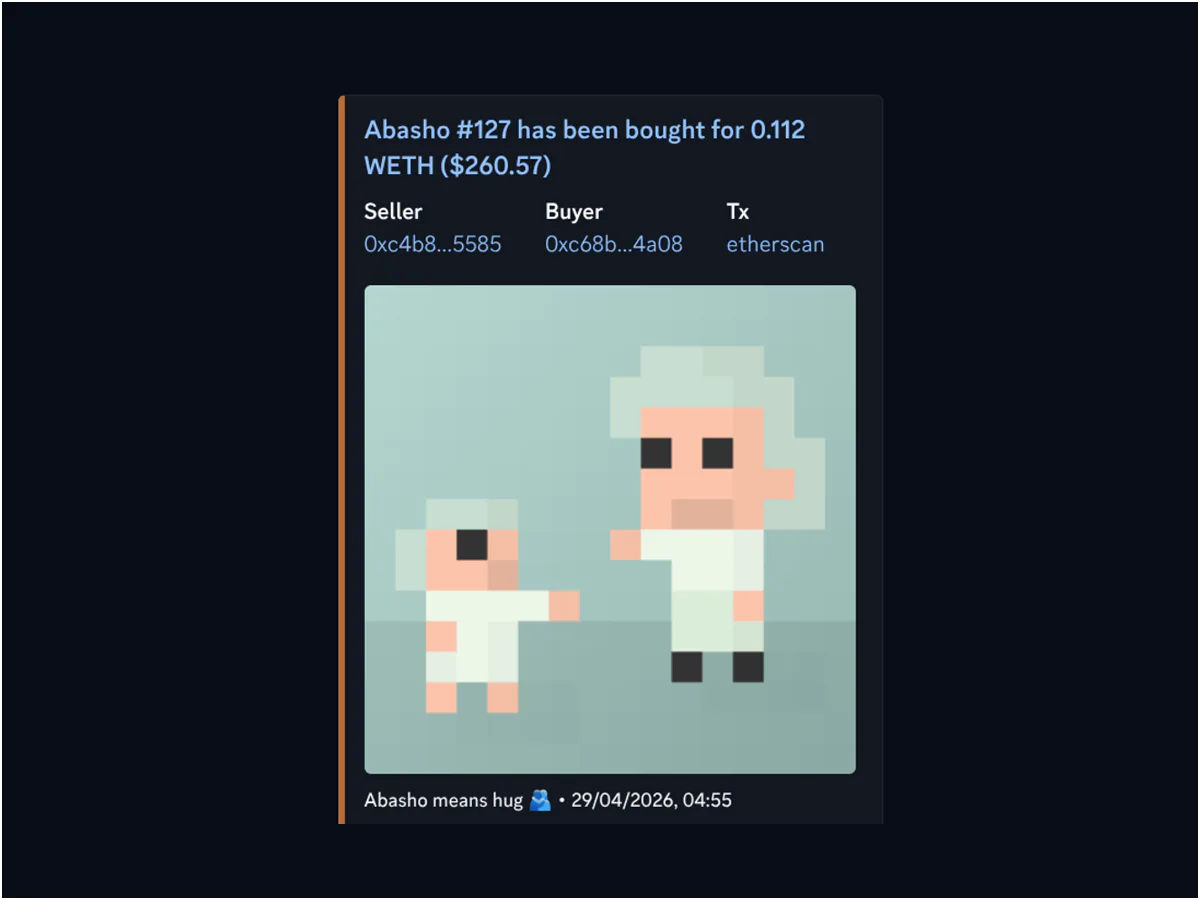
The Discord NFT Sales Bot I Recommend in 2026 (and How to Set It Up Yourself)
You probably clicked here because you want to post NFT sales into your Discord server, and you'd rather not pay $9 a month per collection to a hosted service. Good news: that's exactly what abotbasho does. It's open source under the MIT license, self-hosted, and reads sales straight from on-chain events instead of polling someone else's API.
This post is the end-to-end Discord setup. By the end you'll have the bot posting your collection's sales in real time, running in Docker on a small VPS, with no recurring API costs.
The companion post on the Twitter side: The Twitter/X NFT Sales Bot I Recommend in 2026. The "why I built it" backstory: abotbasho: The Self-Hosted NFT Sales Bot I Built in 2026.
What you're actually building
Three services, talking to each other:
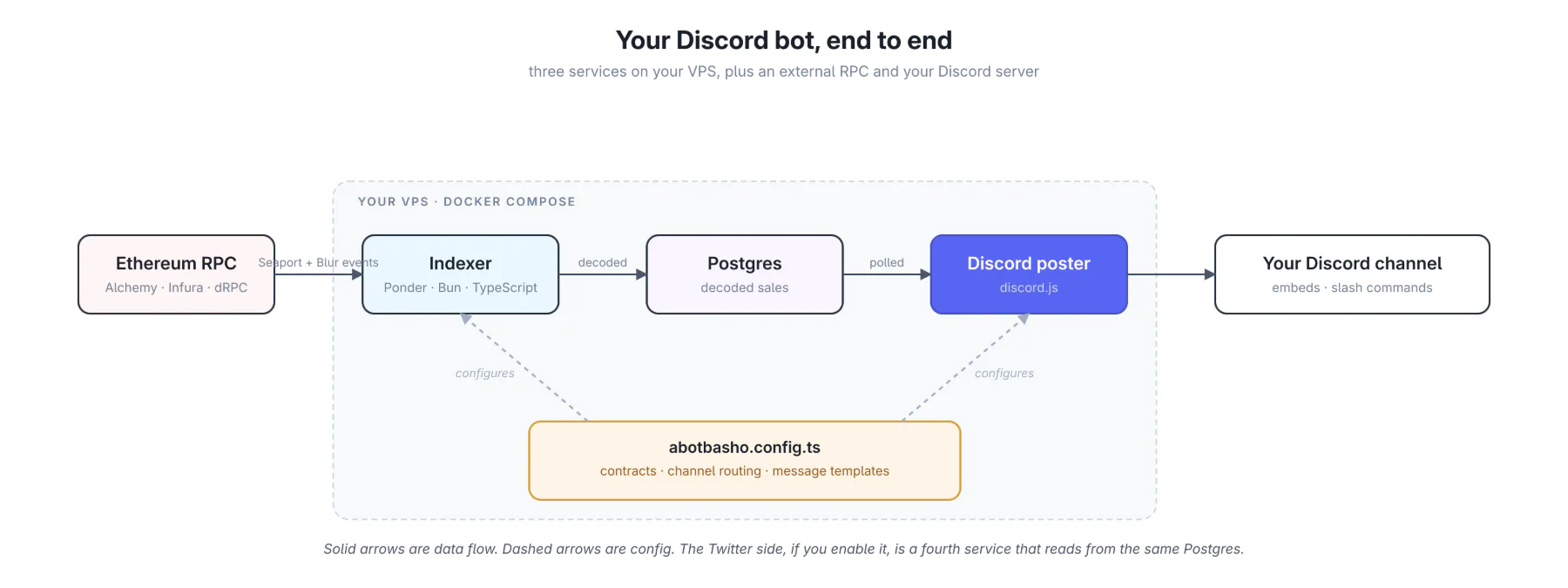 The indexer subscribes to Seaport and Blur Exchange v2 events for the contract addresses you configure. It writes decoded sales to Postgres. The Discord service polls Postgres for new rows, formats them as embeds, and posts them to your channel.
If you also enable Twitter, that's a fourth service that reads from the same Postgres and posts independently. The two posters never talk to each other.
Prerequisites
You need:
- A Discord server where you can install bots (Manage Server permission required).
- A Discord developer account, free, at discord.com/developers.
- An Ethereum mainnet RPC URL. Free tier on Alchemy, Infura, or dRPC is plenty for one collection.
- Either Bun 1.1+ for local dev, or Docker + Docker Compose for production. If you're going to production, just use Docker.
- A small VPS or any always-on machine. A $4-6/month box is plenty for a single collection.
Step 1: Create the Discord application and bot
This part is Discord's UI more than anything specific to abotbasho. Three values to collect.
- Go to discord.com/developers/applications and click New Application. Name it after your collection.
- In the left sidebar, open Bot. Click Reset Token to generate one. Copy it; you won't see it again. This is
DISCORD_TOKEN. - From the application's main page, copy the Application ID at the top. This is
DISCORD_CLIENT_ID.
You'll come back for two more IDs after the bot is in your server.
Step 2: Build the invite URL
Still in the developer portal:
- Open OAuth2 → URL Generator.
- Under Scopes, check both
botandapplications.commands. Both are required. If you forgetapplications.commands, the slash commands won't show up later and you'll think the bot is broken. This is the single most common mistake people make on this step. - Under Bot Permissions, check:
- View Channel
- Send Messages
- Embed Links
- Copy the generated URL at the bottom. Open it in a browser, pick your server, click Authorize.
The bot will appear in your server, offline.
Step 3: Grab the server and channel IDs
Two more IDs from Discord itself:
- In Discord, open Settings → Advanced and turn on Developer Mode.
- Right-click your server icon in the sidebar → Copy Server ID. That's
DISCORD_GUILD_ID. - Right-click the channel you want sales to post in → Copy Channel ID. That's
DISCORD_CHANNEL_ID.
Step 4: Clone abotbasho and write your config
git clone https://github.com/abashoverse/abotbasho.git
cd abotbasho
cp .env.example .env
Open .env and fill in what you've collected:
PONDER_RPC_URL_1=https://eth-mainnet.g.alchemy.com/v2/YOUR_KEY
DISCORD_TOKEN=...
DISCORD_CLIENT_ID=...
DISCORD_GUILD_ID=...
DISCORD_CHANNEL_ID=...
Note the _1 suffix on the RPC URL: that's Ponder's convention for chain ID 1 (Ethereum mainnet). If you ever add a second chain, you'd add PONDER_RPC_URL_8453 for Base, and so on.
Now open abotbasho.config.ts at the repo root. The shape:
export default {
  project: {
    name: "My Collection",
    url: "https://mycollection.xyz"
  },
  primary: {
    label: "mycollection",
    displayName: "My Collection",
    address: "0xYourContractAddressHere",
    deployBlock: 12345678n,
    totalSupply: 10000
  }
  // wrapper, messages, plugins... see below
}
What each field does:
project.nameshows up in embed footers and the indexer's user-agent.primary.labelis a short unique key used internally by the indexer. Lowercase, no spaces.primary.addressis the NFT contract.primary.deployBlockis the block your contract was deployed in. The indexer uses this as the starting point for the historical scan; getting it right matters for cold-start time. Look it up on Etherscan as your contract's first transaction.primary.totalSupplyis optional but recommended. It sets the upper bound for the/view <id>slash command.
If your collection has a paired wrapper contract (a vault, a staking wrapper, an ERC-6551 setup), add a wrapper block with its own address and deployBlock. The bot will then post wrap and unwrap events too.
Step 5: Run it locally and verify
Before deploying to a VPS, get it running locally to confirm the wiring:
bun install
bun run dev:indexer    # in one terminal
bun run dev:discord    # in another terminal
The indexer will start backfilling from your deployBlock. For an old collection this can take a few minutes; for a fresh one it's near-instant. You'll see log lines for each block it processes.
Once the indexer catches up to the chain head, the Discord process picks up and registers slash commands. The bot icon in your server should go green within a few seconds.
To verify end-to-end without waiting for an organic sale, run this in your Discord server:
/debug allThis pushes a sample event of every type (sale, wrap, unwrap if applicable) through the same pipeline a real event would take. If your channel and embed config are right, you'll see fully-rendered messages immediately.
Step 6: Deploy to production with Docker Compose
Once the local run looks right, deployment is one command on your VPS:
git clone https://github.com/abashoverse/abotbasho.git
cd abotbasho
# scp your .env up first, or write it on the box
docker compose up -d --build indexer-db indexer discord
Four services in the compose file:
indexer-db: Postgres for indexed dataindexer: Ponder process watching the chaindiscord: the bottwitter(optional): only spin this up if you've also configured Twitter creds
If you want only Discord (no Twitter), the command above is correct. To run everything: docker compose up -d --build.
To watch what's happening:
docker compose logs -f discord
docker compose logs -f indexer
Customizing what the bot posts
Two ways to change message content.
At deploy time, set defaults in abotbasho.config.ts:
messages: {
  sale: "🔥 New sale!",
  wrap: "🎁 Wrapped",
  unwrap: "📦 Unwrapped"
}
At runtime, use the admin slash commands without redeploying:
/config message sale "🔥 Just bought!"
/config preview sale
Channel routing works the same way. If you want sales in #sales and wrap events in #vault, set per-event channels via env:
DISCORD_SALES_CHANNEL_ID=...
DISCORD_WRAPS_CHANNEL_ID=...
DISCORD_UNWRAPS_CHANNEL_ID=...
Lookup order: runtime override (set with /config channel) → per-event env var → fallback to DISCORD_CHANNEL_ID.
What slash commands you get out of the box
| Command | Who can use it | What it does |
|---|---|---|
/recent [type] [count] |
Everyone | Shows the last N events (1–10) of a given type |
/view <id> |
Everyone | Posts the image, current owner, and OpenSea link for one token |
/wrapped <id> |
Everyone | Wrap status and holding duration (only if a wrapper is configured) |
/config view|message|channel|preview |
Admin | Manage runtime config |
/debug <type> |
Admin | Pushes a sample event through the pipeline |
/blog <url> |
Admin | Unfurls a URL via og-tags or RSS into the blog channel |
Troubleshooting
The four things that go wrong most often, with what to actually check.
Slash commands don't appear in the server. Almost always the OAuth invite was generated without applications.commands. Re-do step 2 with both scopes checked, kick the bot from your server, and re-invite using the new URL.
Bot is online but nothing posts. Three things to check, in order:
- Is the indexer running and caught up?
docker compose logs indexer. If it's still backfilling, no Discord posts will go out for past sales. - Can the Discord container reach the indexer? The default
INDEXER_SQL_URLishttp://localhost:42069/sql, which works for local dev, but inside Docker Compose you wanthttp://indexer:42069/sql. The compose file should set this for you, but if you've customized it, double-check. - Run
/debug all. If a sample event posts, the issue is upstream (the indexer isn't seeing real events, probably a wrong contract address ordeployBlock). If a sample event doesn't post, the issue is downstream (channel ID, permissions).
Wrap events post twice. Wrapper contract address misconfigured in abotbasho.config.ts. Verify the wrapper's address is actually the wrapper, not a proxy or implementation contract.
/view <id> says the token doesn't exist. Either the ID is out of primary.totalSupply range, or the contract reverts on tokenURI for that ID (some collections start at token 0, some at 1).
What's next
Two related posts:
- If you also want sales tweeting from the same data, see The Twitter/X NFT Sales Bot I Recommend in 2026. It uses the same indexer; the Twitter side is just another consumer of the same Postgres.
- For the design rationale (why no Reservoir, why direct event decoding), see abotbasho: The Self-Hosted NFT Sales Bot I Built in 2026.
If you set the bot up and something breaks, the issue tracker is the right place: github.com/abashoverse/abotbasho. I'd rather fix the bot than have you fight the docs.
Written by
nodestarQ
devbasho
Read next
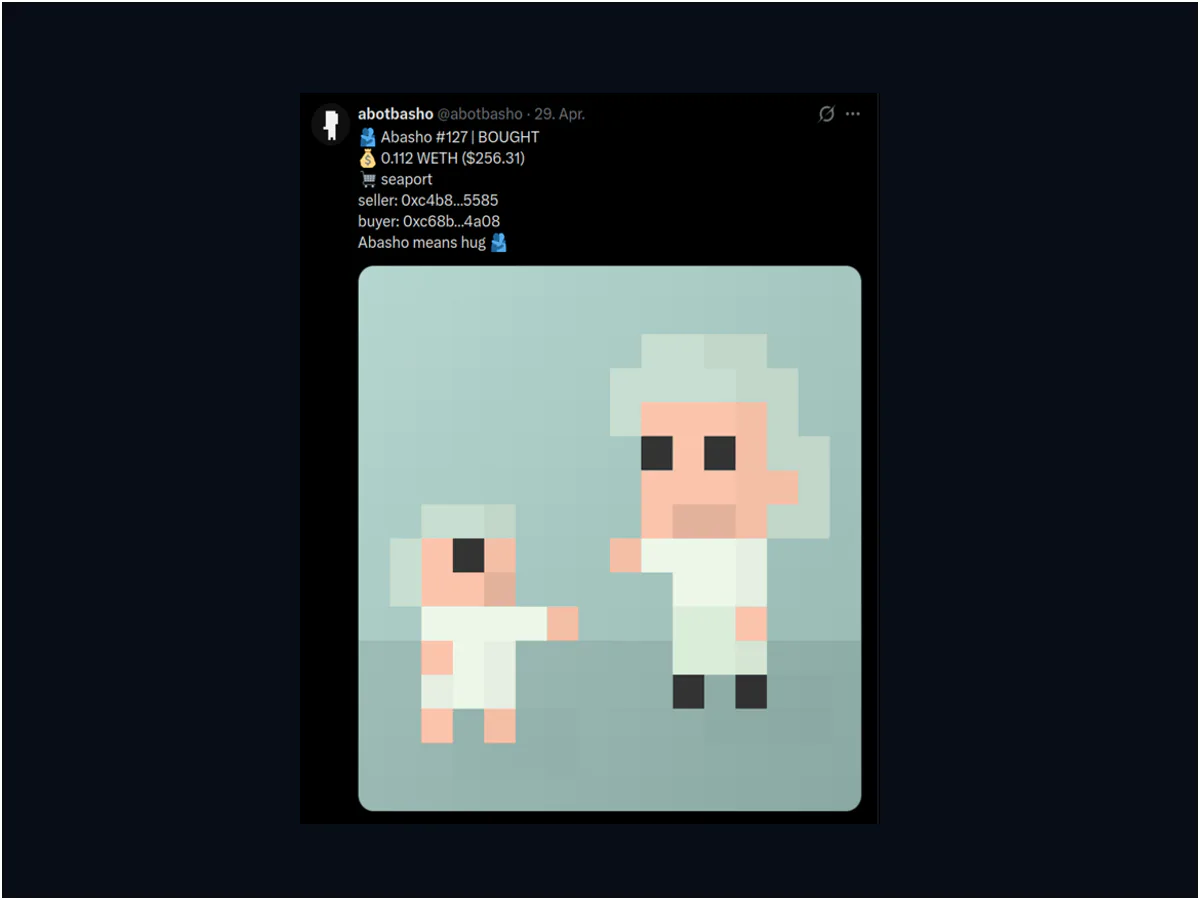
The Twitter/X NFT Sales Bot I Recommend in 2026
Self-hosted Twitter/X NFT sales bot setup with abotbasho. End-to-end walkthrough, plus the 2026 pricing math everyone else gets wrong.
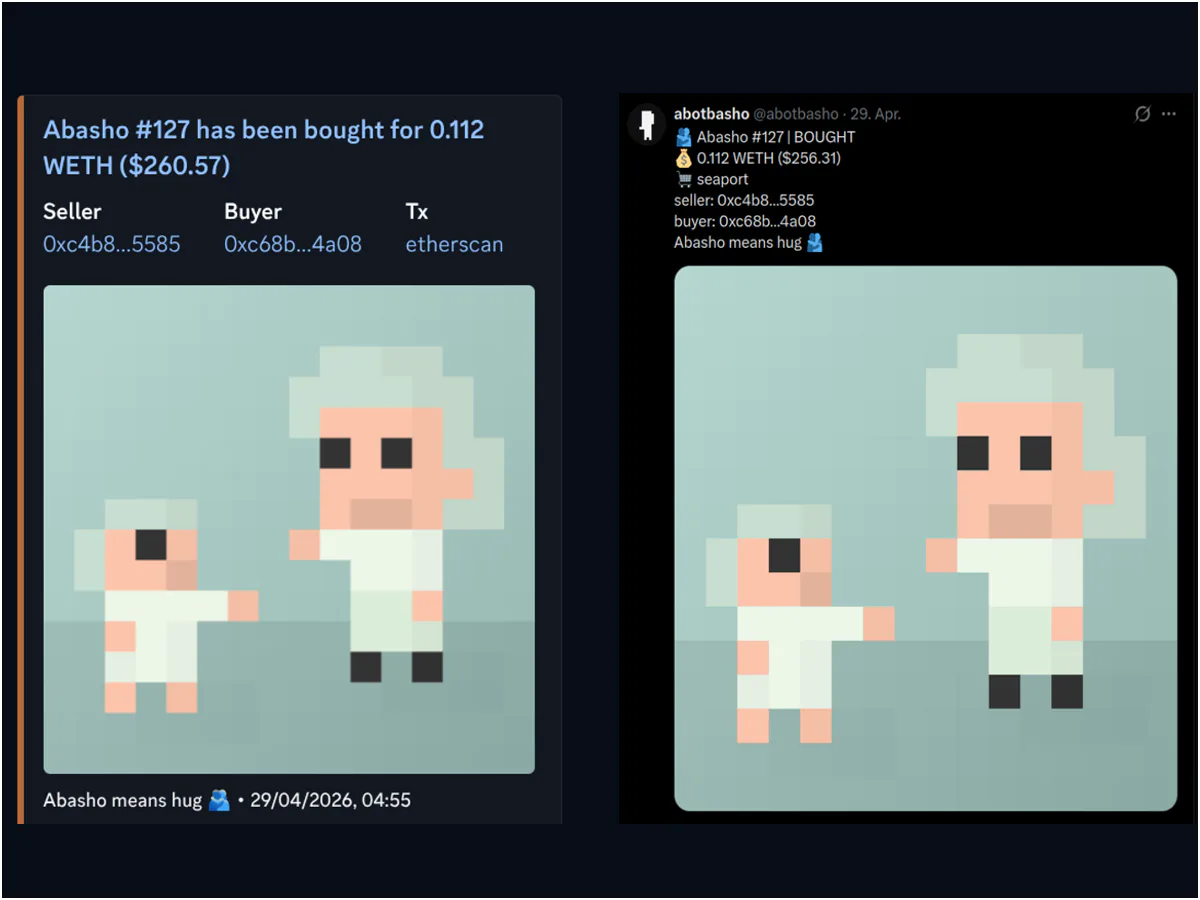
abotbasho: The Self-Hosted NFT Sales Bot for Discord & Twitter
An open-source NFT sales bot for Discord and Twitter, built so I wouldn't have to hand my community channels to a third-party SaaS.
How to Create an NFT PFP Collection in 2026 (Free Generator, Step-by-Step)
End-to-end no-code walkthrough for building a 1k-10k PFP collection with the open-source abashoverse generator. Layers, rarity, rules, ERC-721/1155 metadata, export.
Comments
Connect your wallet to leave a comment.